Menu

muqun-gateway

Install the Gateway, then pair your phone.

Muqun talks to one program on your own computer: the Gateway. You install it there, start it, and pair the phone with it once. There is no account to make and nothing of yours passes through us.
PRE-FLIGHT REQUIREMENTScheck before installing
  • macOS or Linux, on a computer you own. Windows is not supported yet.
  • tmux, or Herdr 0.7.5 or newer, already installed — the Gateway drives one of them rather than replacing it.
  • Both devices on the same private network. Tailscale is the recommended way; use Tailscale Serve, never Funnel.
  • No account, no subscription, and no relay of ours in between.
  1. Run the installer on your computer

    It puts a single binary at ~/.local/bin/muqun-gateway, configures it, and opens the pairing screen on a first run. macOS and Linux; Windows is not supported yet.
    install
    curl -fsSL https://muqun.dev/gateway.sh | sh
  2. Start it, one of two ways

    Either you start it yourself, or you hand it to the machine to keep alive. Both leave you with a running Gateway; they differ in what happens when you reboot.
    OPTION A · DIRECT

    Start it yourself

    Runs in the background, and keeps running after you close the terminal — until the machine restarts. muqun-gateway stop ends it.
    direct
    muqun-gateway start
    OPTION B · SERVICE

    As a service

    Registers it with your own user’s init system — a systemd user unit on Linux, a LaunchAgent on macOS. It starts at login and comes back after a crash or a reboot. muqun-gateway service uninstall removes the registration and keeps your pairings.
    service
    muqun-gateway service install
    Pick one, never both: with the service installed, stop is undone by the supervisor.
  3. Open the pairing manager

    Either way of starting it, this is the next step. The manager is a full-screen panel in your terminal showing the QR code, what is running, and every device that currently holds a token. The installer opens it for you the first time; this is how you get back to it.
    pair
    muqun-gateway manage
  4. Scan, then type the code

    Scan the QR code in Muqun. The computer then shows a short code in the form XXXX-XXXX, and typing it in the app finishes the pairing. Scanning alone does not pair the phone — the code is what proves the person holding it is you.
MANUAL ADDRESS PAIRING
Cannot scan? Enter the Gateway address in the app by hand — the manager prints the address it is publishing — and then type the same short code.
CODE VALIDITY & RETRIES
The code is valid for five minutes and dies after eight wrong attempts. Press p in the manager to show a fresh QR code and a fresh code.
RECOMMENDED PRIVATE NETWORK

Use Tailscale on both devices.

We strongly recommend putting your phone and the Gateway computer on the same Tailscale tailnet. It avoids router port forwarding and keeps the Gateway off the public internet. Tailscale Serve can add a private HTTPS address; do not use Tailscale Funnel for Muqun.

workspace · group.panel

The terminal.

It is your real terminal, not a transcript of one. The Gateway drives tmux or Herdr on your machine, and the app draws what is there — so the session you left on your desk is the session you pick up, and closing the app changes nothing about it.
WORKSPACE ARCHITECTURE

Workspaces, groups and terminals

Three levels, addressed as workspace · group.panel. A workspace is a place you work, a group is a set of terminals in it, and a terminal is one shell. Muqun shows one terminal at a time and does not split the screen: two panes on a phone are two things you cannot read.

Moving between them

Swipe the title pill at the top sideways to change workspace. The chips above the composer move between the terminals of the group you are in. For anything further — another group, another workspace — open the panels sheet and pick the terminal you want.

What is running

The panels sheet lists every workspace, group and terminal on the machine, and is where you add one. Long-press a row for its actions, including closing it — a close is never one stray tap away.
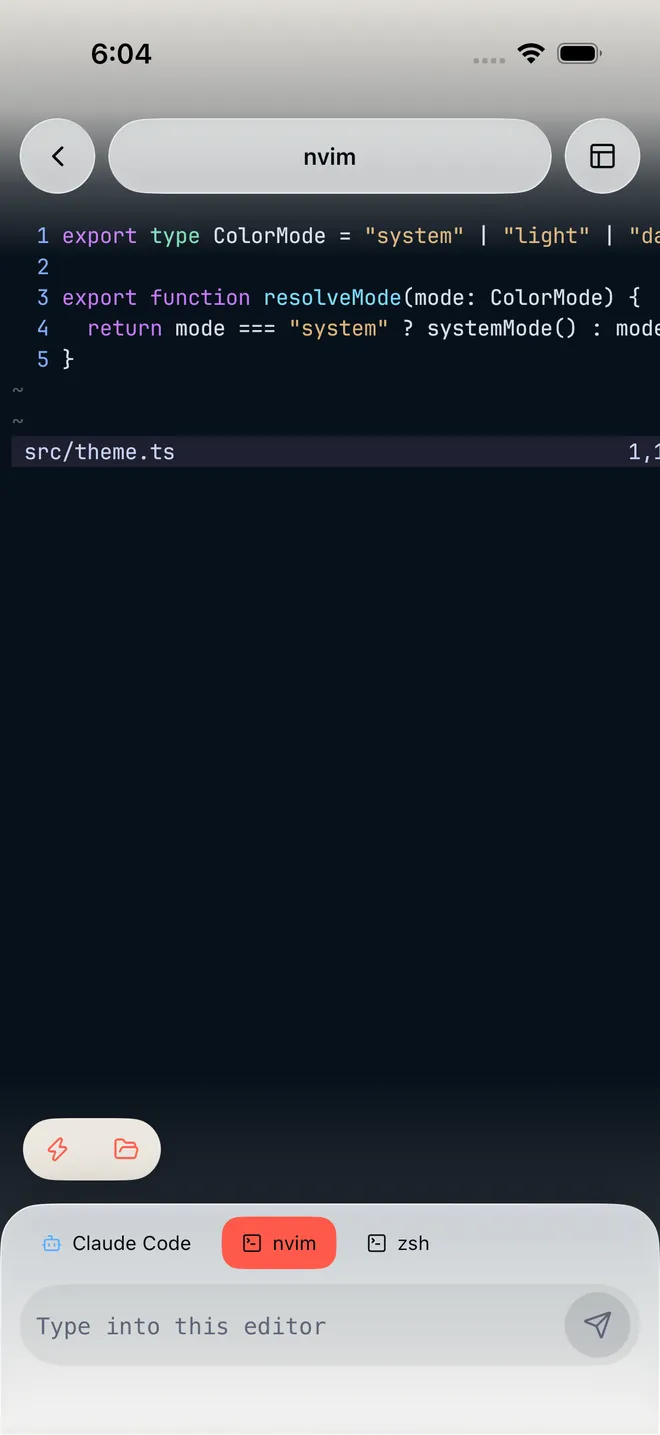
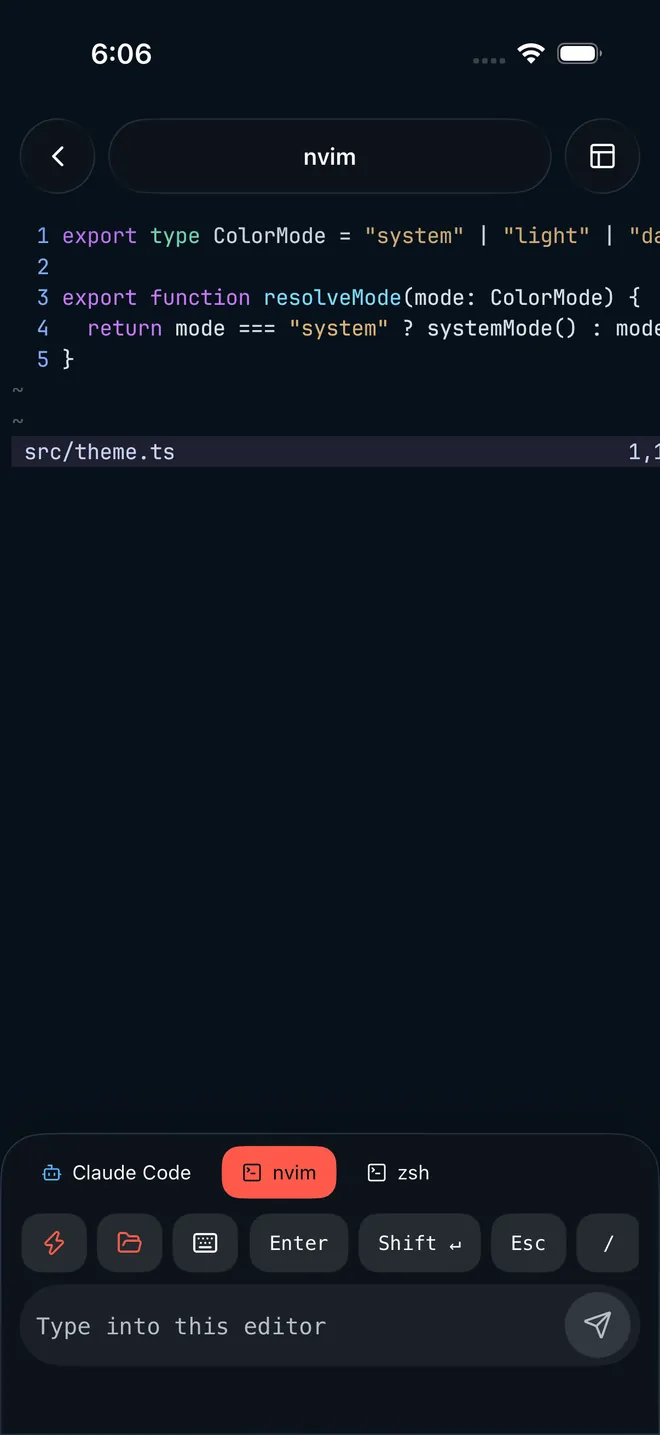
An nvim pane open on a TypeScript file, with chips along the bottom for the Claude Code, nvim and zsh terminals in the same group and the key row above the composer.An nvim pane open on a TypeScript file, with chips along the bottom for the Claude Code, nvim and zsh terminals in the same group and the key row above the composer.
CONTROLS, EDITORS & DEVELOPER TOOLS

The terminal key row

The strip above the composer sends the keys a terminal needs and a phone keyboard does not have: Esc, Tab, ⌃C, arrows, and a set that changes with what is running in the pane — shell keys in a shell, ⇧TAB and ⌃O under Claude Code, :w and gg under nvim. In insert mode in nvim it leads with Esc. There is a full on-screen keyboard behind the keyboard button when you need to type a keystroke it does not carry. You can turn the row off in Settings → Terminal.

The composer

Monospaced, multi-line, and Return makes a new line — sending is a button, because a command you did not mean to run is worse than a tap. What it says above the field follows the pane: Run a terminal command, Send a message, Type into this editor.

Earlier output

Pull down from the top of the terminal to load more scrollback; a chevron appears while there is more to fetch. Once you have scrolled away from the live end, a Latest pill takes you back. New output never yanks the screen out from under you while you are reading.

Changes

The git view for the directory the pane is in: the changed files with a count, filtered by All, Staged or Unstaged, and the diffs themselves. The button carries a badge with the number of changed files, and it only appears when the pane is inside a git checkout and the Gateway offers the git_diff capability.

Files

What the session wrote — images, code and documents, filterable and searchable, readable without leaving the app.

Open in your browser

Type the port your dev server is on and Muqun opens it through the connection you already have. Nothing is published to the internet. If nothing answers, the usual reason is a server bound to localhost on the host.

Quick actions

Saved commands, saved prompts and key combinations, with the ones you use most first. You can add your own and edit the defaults.
●
Muqun only ever observes: opening a session does not re-lay-out your windows, and closing the app does not stop anything.

opencode serve --service

The OpenCode agent.

A screen built for OpenCode rather than a terminal with an agent in it: sessions you can switch between, tool calls as cards with the real diff inside them, and the agent’s questions arriving as something you answer with a tap.
LOCAL RUNTIME · ZERO ACCOUNT

Your computer talks directly to your model provider.

There is no sign-in. Muqun has no account and asks for no API key, because it is not the thing talking to your model provider — OpenCode on your own computer is. You configure providers, models, agents and skills there, the way you already do, and the Gateway passes no credential route through at all.
WHAT IT NEEDS
  • OpenCode 2.0.1 installed on the same computer as the Gateway.
  • At least one provider configured in OpenCode itself. Free models exist, and the model picker has a Free only filter for finding them.
  • The OpenCode service running. The Gateway starts it for you by default, and attaches to one you started yourself.
  • A Gateway new enough to offer the agent surface. Without it the OpenCode button is simply not there, and the terminal is unaffected.
AGENT CAPABILITIES & WORKFLOW

Sessions and subagents

Each session is a conversation with its own context, and they are listed per project or across all of them. A session that starts a subagent shows it indented underneath, so a task that fanned out is still one thing you can read.

Projects

Switch the directory the agent works in, or type a path to open a new one. Picking a project reopens its most recent session rather than starting a fresh one.

Models and agents

Choose a model lists what your providers actually offer, grouped by provider, with the context window on each row and a Free chip on the free ones. Choose an agent switches between Build, Plan, Explore and any custom agent on the host.

Slash commands and skills

Type / in the composer. Some commands the app answers itself — /new, /models, /compact, /undo, /export — and the rest come from the host, which wins when the names collide. Skills on the host appear in the same list and are marked in the transcript when one runs.

Attachments and file mentions

Send a photo, something from the library, or any file. Images are re-encoded on the way out, which drops their EXIF. Type @ to point the agent at a file in the project instead of describing it.

Permissions and questions

When the agent wants to run a command, write a file or read outside the project, the card says which and you answer Allow, Always allow or Deny — the same three words on the notification, so it can be answered from the lock screen. Questions the agent asks come through as a small form to fill in. Auto-approve every action exists for when you are watching; irreversibly destructive commands stay blocked even then.

Background tasks and queueing

A long tool call can be detached to the background and watched from a tray. While a turn is running you choose whether what you type steers it now or queues behind it, and a queued message can be pulled back before it goes.

Context and compaction

The context sheet shows how much of the model’s window is used, the tokens this session has spent and an estimated cost. Compaction summarises the history when it gets long, and the timeline marks where it happened and whether it was automatic.

Undo

/undo rolls the project back to before your last message; /redo cancels a rollback you have not kept. It is a command rather than a button, on purpose.
●
Tool calls arrive as cards: an edit shows its unified diff inline, the same way the Changes viewer draws it.

config.json

Configuring the Gateway.

Most people never open the configuration. It is here for the cases that need it: a different port, a Gateway that should survive a reboot, a machine where OpenCode lives somewhere unusual.

The configuration file

JSON SCHEMA
It is JSON, and the Gateway writes it for you at setup. Edit it by hand only when you need one of the keys below, and restart the Gateway afterwards — configuration is read at startup and a running Gateway will not notice the change. On macOS the same file is under ~/Library/Application Support/muqun-gateway/. Beside it sits pairing.json; paired devices, push tokens and the log live in the state directory, ~/.local/share/muqun-gateway/.
linux
~/.config/muqun-gateway/config.json
CONFIGURATION KEYS REFERENCE
label
The name the app shows for this computer.
listen
The socket it binds, host and port. Defaults to 0.0.0.0:23847, or to loopback when the published address is a loopback one.
public_url
The address encoded into the pairing QR — what the phone will actually dial. Change it with u in the manager rather than by hand.
transport_encryption
required by default, which is what you want. Devices keep whichever mode they paired in, so changing this affects the next device you pair, not the ones already there.
sessions
The terminal backends this Gateway mounts — tmux, Herdr, or both at once. Managed with muqun-gateway backend.
autostart_backends
Which of those start with the Gateway. Empty by default: starting a terminal server is an explicit opt-in.
rich_agent_pushes
Off by default. On, the agent’s question and its offered answers go into the push body itself — which puts terminal text on a lock screen and through Apple’s and Google’s servers. That is why it is off.
opencode.autostart
On by default: the Gateway starts OpenCode itself when it cannot find one already running. Set "opencode": { "autostart": false } to leave that to you.
opencode.binary
Which OpenCode to start. Left out, the Gateway uses the OpenCode in ~/.opencode/bin, or the one on your PATH. Set it to pin a particular binary — the usual reason being a service that cannot see the PATH your login shell has.
PORTS

Default

One TCP port, 23847.

Change it

muqun-gateway setup --port N, then restart it.

What it binds

127.0.0.1 when the address it publishes is a loopback one, 0.0.0.0 otherwise.

On a tailnet

Nothing to forward on your router, which is why we recommend one.
TWO WAYS TO KEEP IT RUNNING
DIRECT

Start it yourself

Starts
When you run it.
Stops
muqun-gateway stop, or a reboot.
Survives a reboot
No.
Undo
Nothing to undo.
direct
muqun-gateway start
SERVICE

As a service

Starts
At login, and again after a crash.
Stops
Only when you uninstall it.
Survives a reboot
Yes.
Undo
service uninstall. Pairings are kept.
service
muqun-gateway service install
A systemd user unit on Linux, a LaunchAgent on macOS. Never root, never outside your home directory.
HOW OPENCODE GETS STARTED
  1. It looks for an OpenCode service already running and healthy, reading the address OpenCode publishes in ~/.local/state/opencode/service.json.
  2. Found one? It attaches to that, and your own opencode serve keeps its sessions.
  3. Otherwise it starts opencode serve --service itself and watches it. It re-reads that file as it goes, so an OpenCode that comes back on a new port is picked up again on its own.
●
No OpenCode on the machine? Nothing attaches, and only the agent screen notices — the terminal is unaffected.
config.json
"opencode": { "autostart": false }
THE PAIRING MANAGER
muqun-gateway manage opens it. It lists what is running and every device that holds a token, and these are its keys:
p
Show the pairing QR again, to add another device.
x
Revoke one device’s access.
u
Edit the address encoded into the QR; a re-detects it for you.
s / t
Start or stop the Gateway without leaving the manager.
m / h
Add a tmux or a Herdr backend; f picks the default, d removes one.
e
Change transport encryption for devices paired from now on.
q
Close the manager. It never stops your terminal sessions.

Older Gateways keep working

The app asks the Gateway what it can do rather than guessing from its version number, and hides what is not there instead of failing. So an older Gateway is still a perfectly good terminal: you lose the newer surfaces, not the connection. Agent collaboration is the one feature with a backend requirement of its own — it needs a connected Herdr 0.9.0 or newer for that session, and a tmux session never offers it. When it is missing the app says what to upgrade rather than hiding the option silently.

Upgrading

Run the same install command again. It replaces the binary in place, keeps your server identity, your address and your configuration, and your paired phones stay paired. If you had installed the service, run service install once more afterwards: the unit carries rules about child-process lifetimes, and refreshing it is what keeps a Gateway restart from taking your terminal sessions down with it.

Logs

DIAGNOSTICS
Started with start, the Gateway writes to ~/.local/share/muqun-gateway/gateway.log, and so does the macOS LaunchAgent. Under systemd on Linux it goes to the journal instead. For more detail, set MUQUN_LOG (or RUST_LOG) to debug before starting it; the default is info.
linux · service mode
journalctl --user -u dev.osuki.muqun-gateway

muqun.dev/themes

Themes.

A theme repaints the app and the terminal together, and every pack has a light half and a dark one. Twenty-four ship with the app; more live in the community catalogue.

The packs that ship

Twenty-four, under Settings → Appearance → Theme, including Catppuccin, Gruvbox, Kanagawa, Rosé Pine, Tokyo Night and Everforest. Colour mode — System, Light or Dark — picks which half of the pack you see, not which pack it is.

Browsing the catalogue

Browse themes reads the catalogue published here on muqun.dev. Nothing downloads until you open a row, and the package size is on the row before you do.

What a theme is, as a file

A .muqun-theme is a zip holding one theme.json and an assets folder of PNG, JPEG or WebP images — nothing else is allowed inside. A .muqun-theme.json is the same manifest without the images, for a theme that is only colours.

What the manifest covers

Seventeen interface colours per mode; the terminal’s background, foreground, cursor, link and selection plus all sixteen ANSI slots; artwork for eleven surfaces, from the shell background to the Home hero; up to three custom icons — back, send and attach; and a starting opacity for the interface and the terminal. A light half and a dark half are both required. No fonts, no SVG and no animation.

Its limits

A manifest up to 256 KiB, up to 32 images at 8 MiB each, and 25 MiB for the packed theme.

Installing one from a file

Open a .muqun-theme from Files, AirDrop or a share sheet and Muqun offers it, or use Import file in the theme sheet. A file that is not a theme is refused rather than half-applied.

Installing one from a link

Import link takes a public theme URL, or a GitHub repository — the only repository host supported — where you can pin a branch or commit and name the theme file if it is not theme.json at the root. The review card names the host the images come from before anything downloads.

Installing one from a terminal

Tap a .muqun-theme path in terminal output and a card offers to preview it: nothing is applied until you say so.

Preview before apply

Every route ends the same way. The theme downloads, unpacks and prepares its images, then the whole app puts it on so you can look around. Your current theme is untouched until you tap Apply theme.

Background opacity

A theme of your own carries two sliders: Interface background opacity, which changes coloured backgrounds but not text, icons or artwork, and Terminal background opacity, which shows the app background behind terminal text. Both run the full range, and below the recommended floor the app warns that text is no longer guaranteed to stay readable rather than stopping you. Built-in packs do not have them.

Making one

There is no colour editor in the app: a theme is authored as a file. Muqun ships a skill for writing one, so you can describe the look you want to your agent — the Create a Muqun theme quick action starts it — and get back a manifest, the artwork and a packed theme you can import.

Publishing one

The catalogue is a repository that takes pull requests: open one with your src/<id> folder, and once it is merged CI packs it and it appears on muqun.dev within minutes. The toolchain scaffolds a theme and checks its contrast before you send it.

Removing one

Remove it from its row in the theme list and confirm; it goes from this device. Settings → Storage has Remove unused themes for clearing out everything you are no longer wearing.
when it does not connect

When something does not work.

Almost everything here is one of four things: the Gateway is not running, the phone cannot reach its address, the pairing is gone, or OpenCode is not up on the host.
QUICK CHECKS

Pair a computer

Install the Gateway on a computer you own — it works with tmux or Herdr — open its manager panel, then scan the pairing QR in Muqun. The confirmation code shown on the computer finishes pairing.

Fix a connection

Check that tmux, or Herdr 0.7.5 or later, and the latest Gateway are running. Confirm the phone and computer can reach the same private address, then reopen the server in Muqun.

Remove a device

Delete a server from the Muqun home screen to revoke this phone from that Gateway. You can also revoke any paired device from the Gateway manager panel.

Restore notifications

Enable notifications for Muqun in your phone’s system settings and in Muqun Settings. Reopen the paired server so Muqun can register the current device token with your Gateway.
DIAGNOSTIC SOLUTIONS

It cannot pair

Could not reach the gateway means the address in the QR is not answering from where the phone is standing. Check muqun-gateway status on the computer, then check that the phone can reach that address at all — the same Wi-Fi, or better, the same tailnet. A Gateway bound to loopback is not reachable from anything but its own machine; either publish a real address with u in the manager, or pair through a saved SSH host, which is exactly what that option is for.

The code is refused or expired

The code is eight characters, lasts five minutes, and is burned after eight wrong tries. Press p in the manager for a fresh QR and a fresh code. The alphabet has no 0, 1, I, L or O in it, so a character that looks like one of those is something else.

The dot

A filled dot means the app asked and got an answer: ONLINE, or OFFLINE when nothing answered. A hollow ring reading NOT CONNECTED means it has not asked yet — it is not a failure, and opening the server resolves it.

It says to pair again

The device token for that Gateway is gone — revoked from the manager, or lost when the Gateway’s state was rebuilt. Pair the server again; nothing else on the phone is affected.

OpenCode is not found

The agent screen says OpenCode service offline and tells you to run opencode serve --service on the host. Run it, then tap Check again. If it is already running and still not found, the Gateway is usually looking at a different binary from the one you started: set opencode.binary in config.json to the full path and restart the Gateway.

A model is greyed out, or there are no free ones

Set up on the host means that provider is not configured in OpenCode — configure it there and reopen the picker. No free models on this host means the Free only filter matched nothing, not that something is wrong; turn the filter off to see everything your providers offer. Muqun shows an estimated cost per session but does not charge anything and does not stand between you and your provider.

The agent wants to leave the project

Read outside the project and Write outside the project are what they sound like, and the path is on the card. Allow is once, Always allow remembers it, Deny refuses. This prompt is doing its job — it is worth reading the path before answering.

The Changes button is missing

It appears only when the terminal is inside a git checkout and the Gateway is new enough to serve diffs. Upgrade the Gateway by re-running the install command.

Something needs a newer Gateway

The app asks the Gateway what it supports rather than guessing, so an old Gateway loses a feature and keeps the terminal. Assigning work to another assistant additionally needs Herdr 0.9.0 or newer on that session, and the app says which of the two to update.

The host is behind a proxy

Your machine is what talks to your model provider, so a host that needs a proxy to reach the internet needs OpenCode configured for it on that machine. Muqun neither proxies nor sees that traffic.

github · issues

Still stuck?

Open an issue. It is where the next version comes from, and it is read.
USEFUL REPORT CHECKLIST
Include the app version, the Gateway version, and what you did just before it went wrong.
PRIVACY GUARANTEE

Privacy and safe reporting

Support never needs your access token, full terminal output, source code, or pairing QR. Remove secrets before attaching screenshots or logs.